Trail View
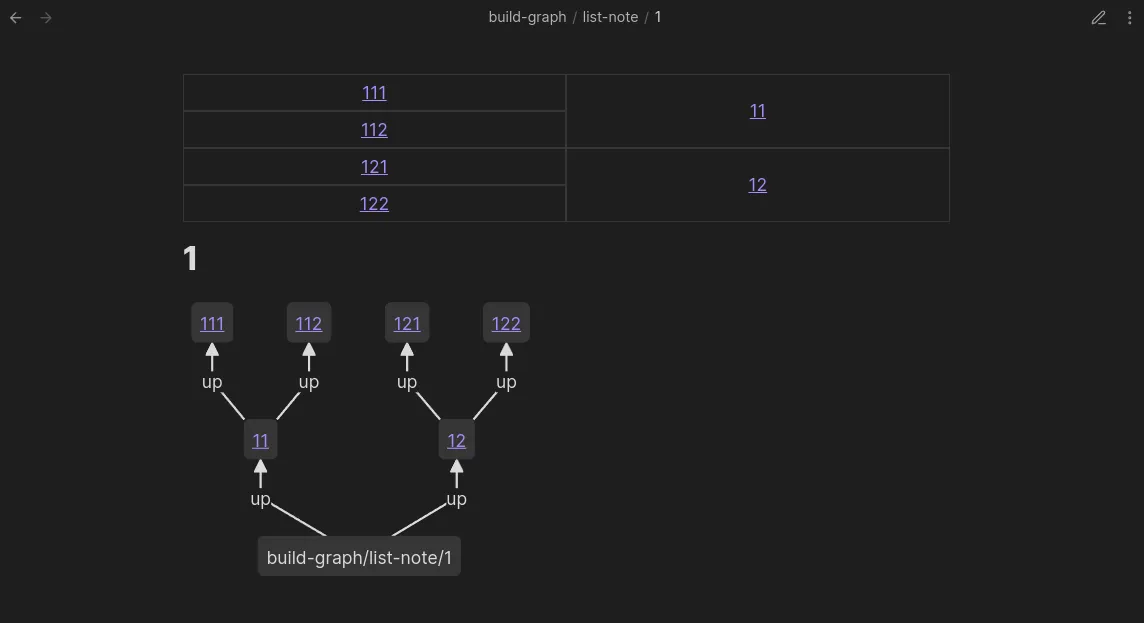
The Trail View shows all paths going up from the current note. In this example, we see a binary tree going up two levels from the current note. The Mermaid graph below visualises the same data:
Settings
Section titled “Settings”Change under Settings > Views > Page > Trail
- Enable: Show/hide the Trail View at the top of your notes.
- Format: Show the results in a
pathorgridformat (the underlying data is still the same). - Path Selection: Show
allpaths, or only theshortest/longestpath. - Default Depth: A maximum depth of the paths. If the paths go longer than the max depth, they are sliced off. Defaults to
999(effectively unlimited). - Field Groups: Choose which field groups are shown. By default, the
upsgroup is shown. - Merge Fields: Traverse each field separately, or all together.
- Show Controls: Show/hide a set of controls on top of the Trail View to change the format, depth, and path selection interactively.
- No Path Message: The message to show when there are no paths to display. Leave blank to hide the Trail View entirely when there is no path.
- Note Display Options: Three toggles — Folder, Extension, and Alias — that control how note links are displayed in the trail.