Tree View
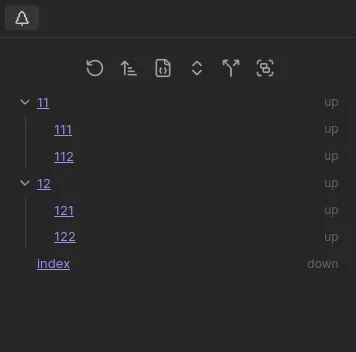
The Tree View appears on the side of the editor, and shows all paths with a chosen field group, starting from the current note. By default, it shows all paths going down. This image shows paths going either up or down:
Settings
Section titled “Settings”Change under Settings > Views > Tree
- Collapse: Fold the nested paths by default
- Find Root: Walk up the hierarchy to find the root note, then display the tree from there. Also togglable via the toolbar button. When off, the tree starts from the current file
- Find Root Field Groups: The field groups used to walk up to the root when Find Root is enabled. Defaults to
ups - Default Depth: How many levels deep the tree expands by default
- Edge Sort: Change the edge sorter used
- Show Attributes: Choose which edge attributes show
- Field Groups: Choose which field groups are shown
- Merge Fields: Traverse each field separately, or all together
- Lock View: Lock the tree view to a specific file, so it doesn’t change as you navigate
- Lock Path: The file path to lock the tree view to (overrides the current note)
- Note Display Options: Three toggles — Folder, Extension, and Alias — that control how note links are displayed in the tree
Search
Section titled “Search”A fuzzy search input in the Tree View toolbar filters displayed notes by title. Ancestors of matching nodes remain visible so the hierarchy context is preserved. Click the search icon in the toolbar to toggle it.